Dear Therapist, Love Google Workspace: An Open Letter on Security Basics for Practice Owners
Dear Therapist,
It's me again. Google Workspace.
Last time we talked about where your client files actually live. This time I want to talk about something a little less exciting and a lot more important: who else can see them.
Here's a scenario I see more often than you'd think. A practice owner brings on an associate. That associate gets access to a shared drive so they can do their job. Eighteen months later, the associate leaves for a job across town, and their Google account is still active, still has access to that shared drive, and still shows up as an editor on documents nobody remembers giving them.
Nobody did anything wrong here, exactly. Nobody sat down and decided to leave that access open. It's just that the admin console, the part of me that controls all of this, is the part nobody ever gets a proper tour of. You signed up, you started using Docs and Drive and Gmail, and the actual control panel underneath it all stayed a mystery.
So let's fix that. This is the unglamorous, extremely necessary letter about the back office of your practice's tech stack.
Why This Actually Matters (Beyond "Better Safe Than Sorry")
If you're storing anything client-related in Workspace, protected health information, signed consent forms, insurance details, then who has access to that information isn't a nice-to-have to think about eventually. It's a direct extension of your confidentiality obligations to your clients.
A messy permissions setup isn't usually the result of carelessness. It's the result of a practice that grew, added people, and never circled back to clean up after the growing was done. That's an incredibly normal thing to have happen, and also a very fixable one.
Turn On Two-Factor Authentication for Everyone, Not Just Yourself
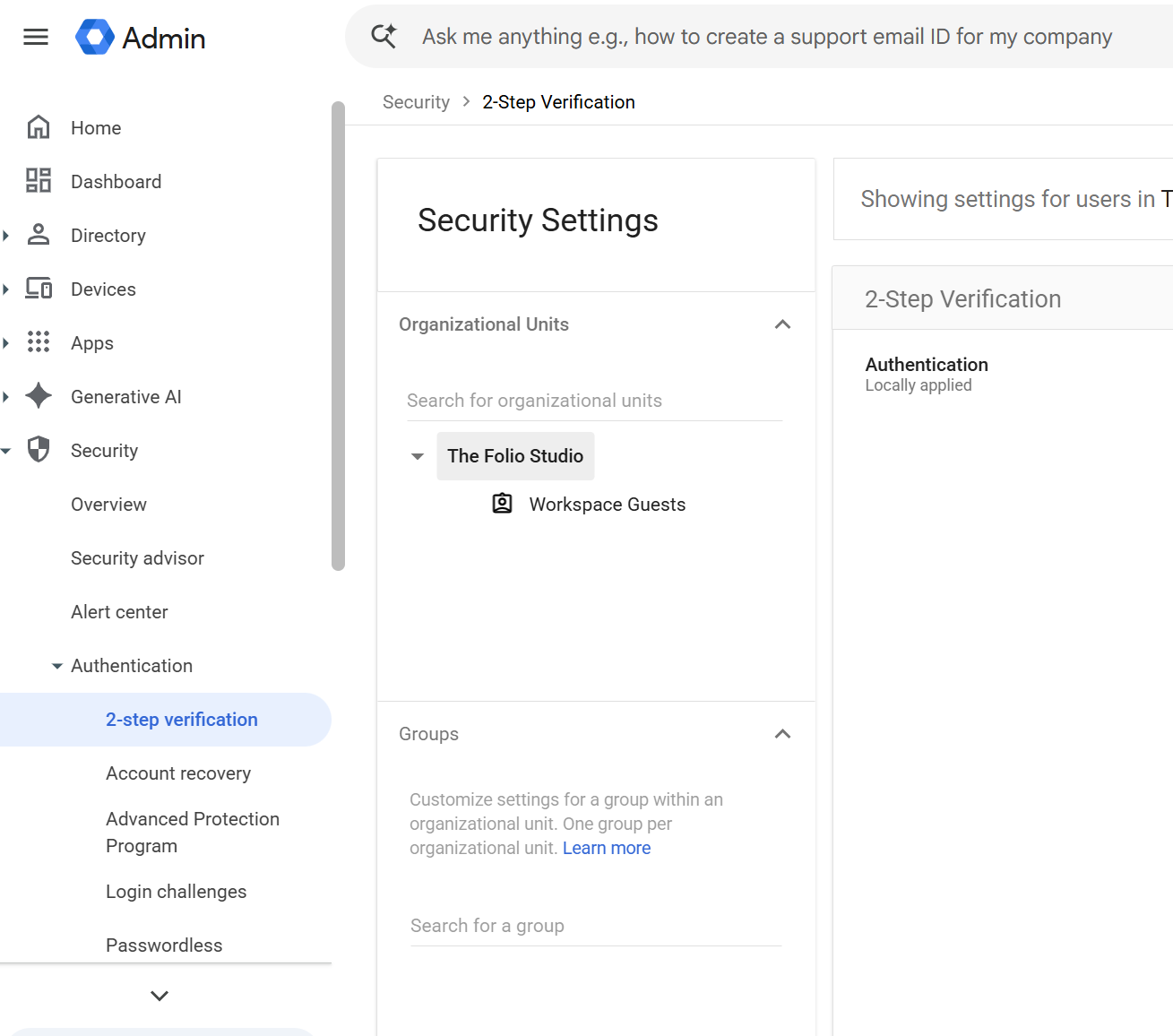
If you have two-factor authentication (2FA) turned on for your own account but nobody else's, you've secured one door in a building with several.
From your Admin console → Security → Authentication → 2-Step Verification, you can require 2FA for every user in your Workspace, not just recommend it and hope people opt in. Enforcing it at the organization level means a compromised password alone isn't enough for someone to get into an account holding client information.
A few notes on rolling this out:
Give your team a heads-up before you enforce it, so nobody gets locked out mid-session with a client waiting.
Have everyone set up their authentication method (an app like Google Authenticator is generally more reliable than SMS) before the deadline you set.
If someone genuinely gets locked out, the admin console lets you generate backup codes so you're never stuck waiting on a text message that doesn't arrive.
Understand Your Admin Roles Before You Hand One Out
Not everyone who needs some access needs all access. This is the part of the admin console that gets skipped most often, because by default, the person who set up the Workspace account is the only Super Admin, and it's tempting to just make every trusted staff member a Super Admin too, "just in case."
Please don't do that.
A Super Admin can do everything: add and remove users, change security settings, access billing, delete data. That's an enormous amount of power to hand to someone whose actual job is scheduling or billing.
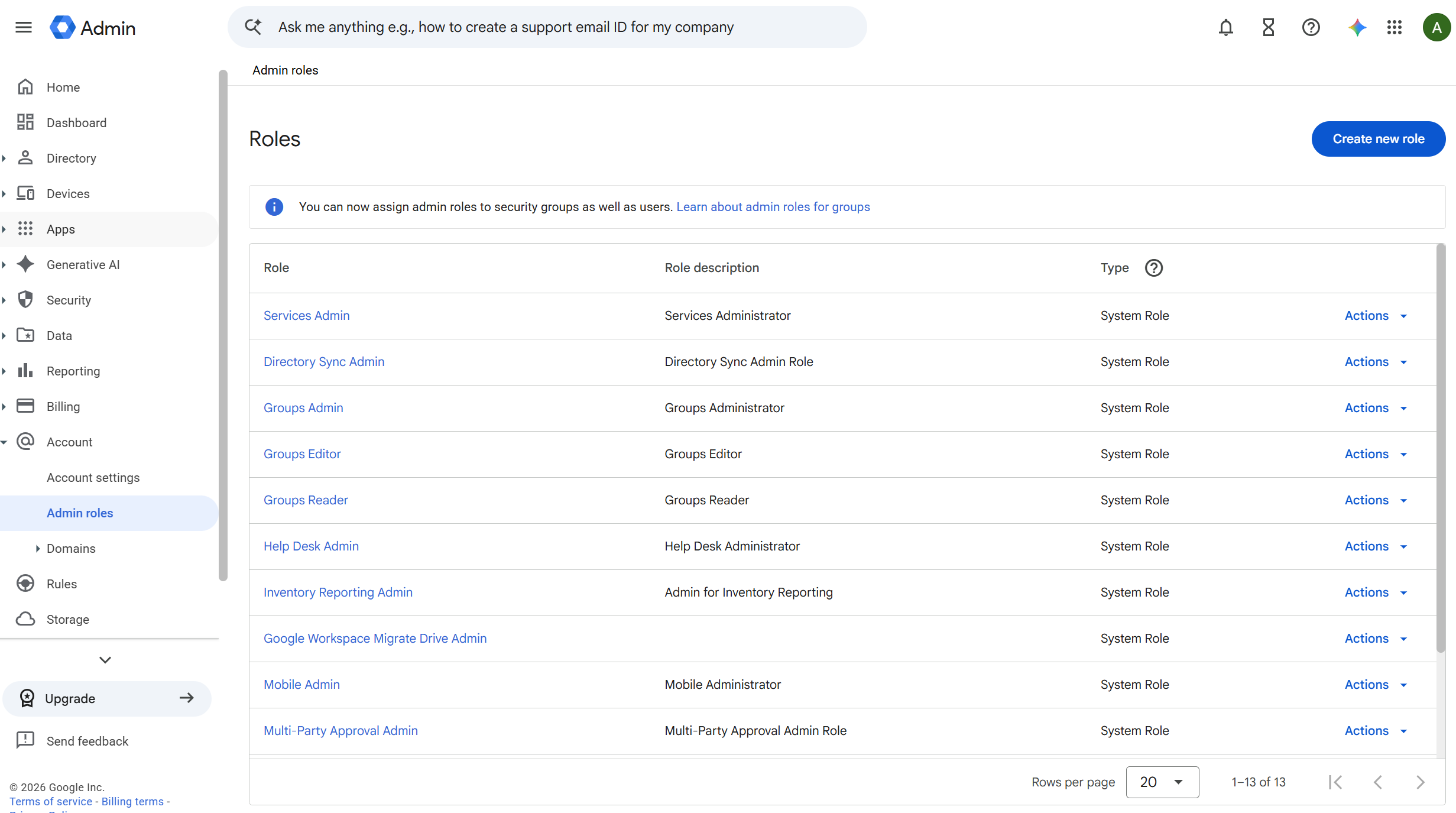
Instead, use Admin console → Account → Admin roles to create scoped roles:
A billing-only admin for whoever manages your subscription and invoices
A user management admin for someone who helps with onboarding and offboarding staff, without full account control
Super Admin reserved for you (and maybe one trusted co-owner), and no one else
This isn't about distrust. It's about making sure that if one account is ever compromised, the damage that account can do is limited to what that role actually needs.
Audit Shared Drive Permissions on a Schedule
If you have any Shared Drives (and if you're running a group practice, you probably should), permissions on them tend to creep over time. Someone gets added for a one-off project and never gets removed. A biller gets access to a folder they needed for one quarter, three years ago.
Set a recurring calendar reminder, quarterly works well, to review:
Who has access to each Shared Drive, via the Drive's Manage members panel
What level of access they have (Viewer, Commenter, Content Manager, Manager), and whether it still matches their actual role
Whether anyone on the list has left the practice or changed roles since the last review
This is a genuinely quick task once it's a habit, and a genuinely painful one to reconstruct after the fact if you've never done it at all.
Offboard Staff and Associates the Right Way
This is the step that gets missed most often, usually because it happens during an already busy, sometimes emotional moment: someone is leaving the practice.
A simple offboarding checklist:
Transfer ownership of any files or folders they own to you or another active team member, before you suspend their account. Once an account is deleted, files it solely owned can become inaccessible.
Suspend the account first, don't delete it immediately. A suspended account can't log in, but it preserves the data for a window of time in case you need to retrieve something. You can fully delete it later, once you've confirmed everything important has been transferred.
Remove them from all Shared Drives they had access to, not just the ones you remember offhand, check the full list.
Revoke any email delegation or forwarding rules they may have set up on shared inboxes.
Change any shared passwords they had access to (a scheduling tool, a shared credit card processor login, anything outside of Workspace itself that they knew the credentials for).
Remove them from any admin roles if they had one.
Put this checklist somewhere you'll actually find it when you need it, your Notion SOP library is a great home for it, so offboarding is a repeatable process instead of something you're improvising while also feeling some kind of way about a staff member leaving.
Keep an Eye on Devices, Not Just Accounts
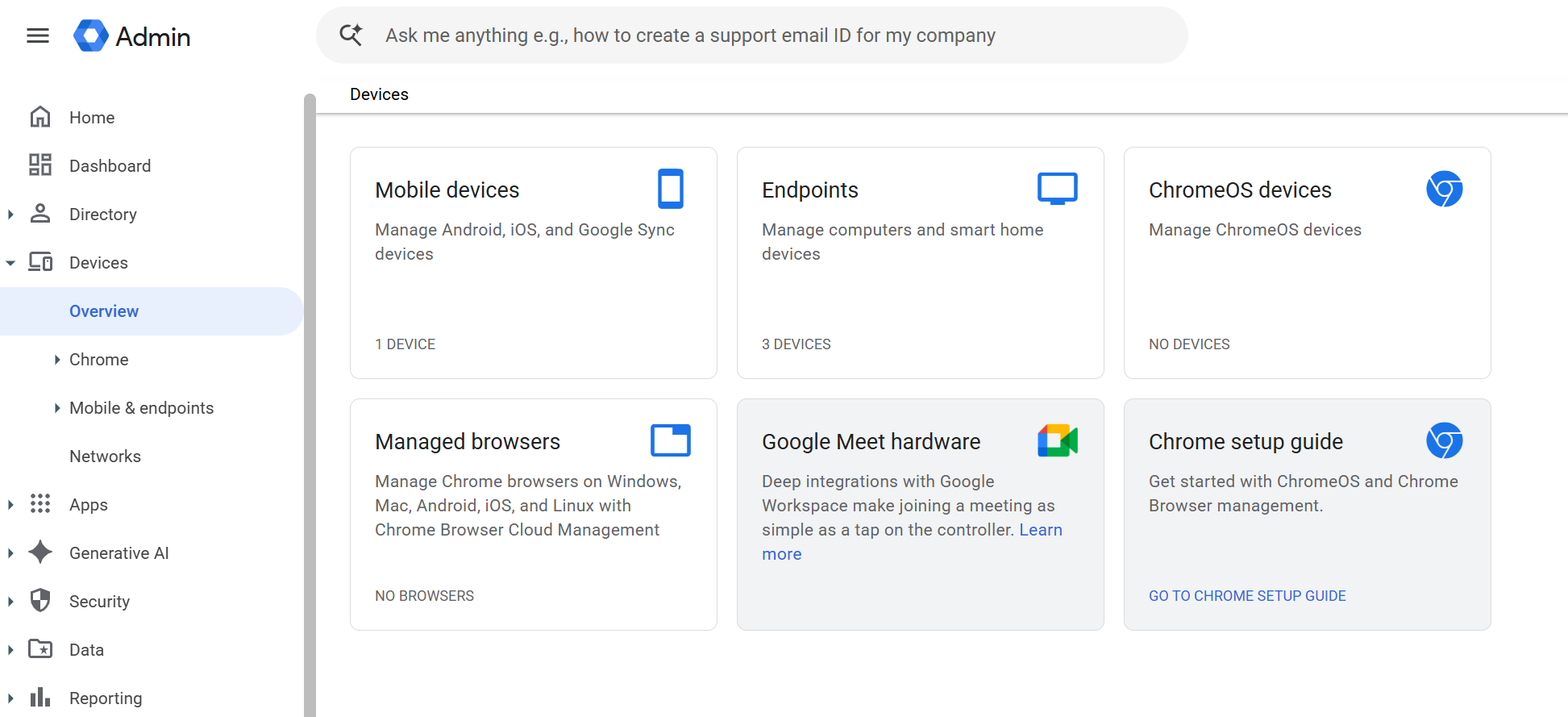
Client information doesn't just live in the cloud, it lives on the actual laptops and phones people use to access it. From Admin console → Devices, you can see which devices are logged into Workspace accounts across your practice, and depending on your plan, remotely sign a device out or wipe Workspace data from it if it's ever lost or stolen.
This matters more than it might seem, especially if anyone on your team does telehealth sessions from a personal laptop or checks practice email from a personal phone. A lost phone is stressful on a normal day. A lost phone that's still logged into a Shared Drive full of client files is a different category of problem entirely.
A Simple Admin & Security Audit
Set aside 30 minutes and go through this:
Is 2-Step Verification enforced for everyone in your Workspace, not just you?
Does anyone have Super Admin access who doesn't strictly need it?
Have you reviewed your Shared Drive permissions in the last quarter?
Do you have a written offboarding checklist, and has it actually been used the last time someone left?
Do you know which devices are currently logged into your practice's Workspace accounts?
If you're working through this list for the first time, don't try to fix everything today. Enforce 2FA this week. Do a permissions audit next week. This is maintenance, not a fire drill, and it gets easier every time you do it.
With love (and a promise that I'm only asking you to look at the admin console because I actually care about your practice),
Google Workspace
Want more practice tech tips? Check out these posts next: