Dear Therapist, Love Canva: How to Batch a Month of Reels Without Ever Turning on Your Camera
Dear Therapist,
It’s Canva. I’ve watched you open a blank template at 11:47pm, type “Monday Mindset”, stare at it for four minutes, and close the tab without posting anything.
I get it. Marketing feels like the thing that always gets pushed to “whenever I have time”, which someone never actually arrives. And when it does happen, it happens in a scramble; like a caption written in the Notes app on your phone, a graphic thrown together in five minutes before you meant to post and a nagging feeling that you’re doing this whole “online presence” thing wrong.
Here’s what I want you to know, marketing your practice doesn’t have to be a daily fire drill, and you definitely don’t need to be on camera to do it well. There’s a way to generate dozen of pieces of content in one sitting using a toll you might already use for something else entirely, and that’s AI. Let’s build that system.
First, Make Sure Your Brand Kit Is Set Up
Before any of this works, your Canva account needs your actual brand colors, fonts, and logo loaded in, otherwise every new design defaults back to random Canva colors instead of looking like your practice.
I already walked through that step by step over here: How to Create Branded Social Media Posts in Canva (Even If You've Never Used It Before). If you haven't set up your Brand Kit yet, go do that first, then come back. Everything below assumes it's already in place.
Know Your Content Pillars Before You Generate Anything
Before you touch AI or Bulk Create, decide what you're actually going to post about. Trying to come up with ideas and build designs at the same time is exactly what turns a focused session into a three-hour spiral.
Pick three to four content pillars, topics you can rotate through indefinitely without running out of ideas. For a private practice, that might look like:
Psychoeducation (a concept, reframe, or coping tool related to your specialty)
Behind the practice (what therapy with you actually looks like, logistics, what to expect)
Myth-busting (common misconceptions about therapy or your specialty)
Community and connection (local resources, seasonal check-ins, gentle reminders)
Once you know your pillars, you're ready for the actual hack.
The Real Hack: Batch Dozens of Faceless Reels Using AI + Bulk Create
Here's the part that changes everything. Instead of designing one reel at a time, you can generate a whole batch of content ideas with an AI tool like Claude, then use Canva's Bulk Create feature to turn that entire batch into finished, on-brand reels in one pass, no filming, no talking head, no repeating yourself in front of a camera fifteen times until you stop stumbling over your words.
Here's the whole workflow, start to finish.
Step 1: Generate Your Content Batch With Claude
Open Claude (or whichever AI tool you use) and ask it to generate a batch of short, structured content ideas in a table format. Being specific about the structure matters, because that structure is what makes Bulk Create work later.
Here's a prompt template you can adapt to your own specialty:
"Think like a digital product creator. I'm a therapist in private practice specializing in [your specialty, e.g. anxiety, couples work, postpartum]. Generate 20 short, educational social media insights related to [your specialty], written in a warm, plain-language tone appropriate for a general audience, not clinical jargon. Organize them into a table with three columns: Column 1 denotes the topic or type of face. Please make sure that the topic section include an eye-catching hook or headline (a short, scroll-stopping hook, like '3 signs your nervous system is stuck in fight-or-flight'), the 2nd Column represents Part 1 (the first key point, 1-2 sentences), and 3rd Column represents Part 2 (a practical takeaway or next step, 1-2 sentences). Ensure each fact is unique and applicable across various digital marketing channels such as social media posts, email marketing, SEo, Instagram, etc. Aim to make the face engaging, proactive and relatable to a diverse audience or specific user scenarios. Additionally, maintain a readability level of at least grad 7. Output the result of 20 prompts in CSV format."
A few notes on this prompt:
Start with 15-20 entries, not 100. It's tempting to go big right away, but a smaller batch is easier to review for tone and accuracy before it goes anywhere near Bulk Create. You can always generate another batch once you trust the workflow.
Keep the framing as general education, not individualized clinical advice. This matters for any content going out to a broad, anonymous audience. Review every single entry before it's scheduled, since AI can generate something that sounds right but oversimplifies or overstates a clinical concept.
The most specific you can be and detailed in your prompt, the better outcome.
Once it's done generating, download or copy the result as a CSV or spreadsheet. You'll need it in the next step.
Step 2: Build One Reel Template With Matching Text Placeholders
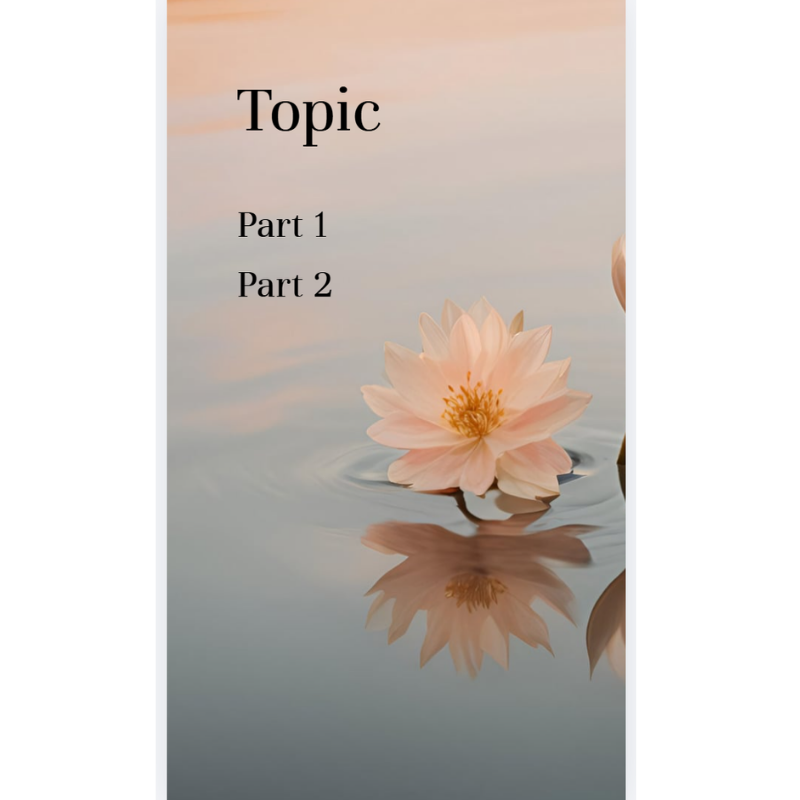
In Canva:
On your graphic/reel type in Topic, Part 1, Part 2 and move the text boxes around on your page to be where you want the text to go.
In Canva, create a new design and search Reel to open it in Instagram Reel format. This is the one template you'll build once and reuse for the entire batch.
If you want a faceless design (no filming required), go to Apps > Video, search a keyword that fits your brand's aesthetic (calming, nature, minimal, whatever fits your vibe), and drop a looping B-roll clip in as your background.
Then add three text boxes on top, named to match the columns from your AI-generated table:
Topic
Part 1
Part 2
This matching is what lets Canva auto-fill each reel with the right content in the next step.
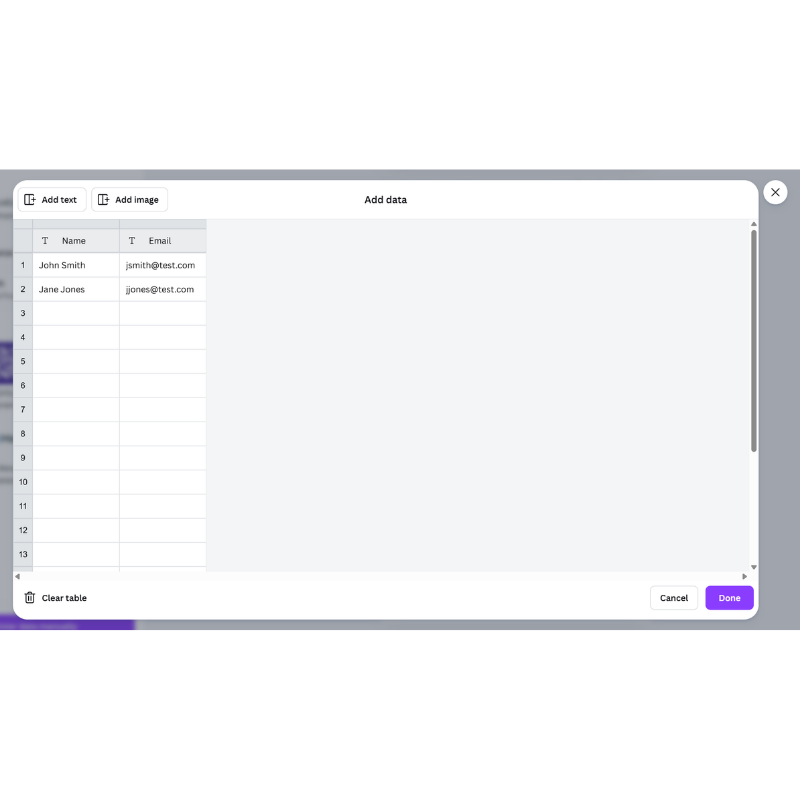
Step 3: Open Bulk Create and Load Your Content
With your template open, go to Apps > Bulk Create, then choose Enter Data Manually. This opens a blank data table inside Canva.
Name your columns to exactly match your text boxes (Topic, Part 1, Part 2), then copy your AI-generated content over from your spreadsheet or CSV and paste it into the matching columns. Once every row is in, click Done.
Step 4: Connect Your Data to the Design
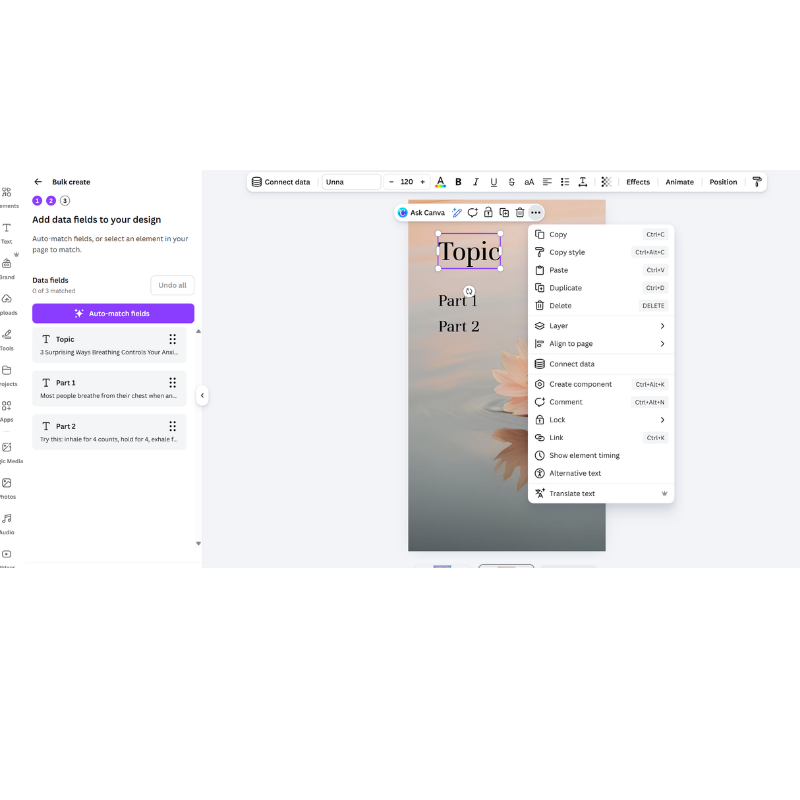
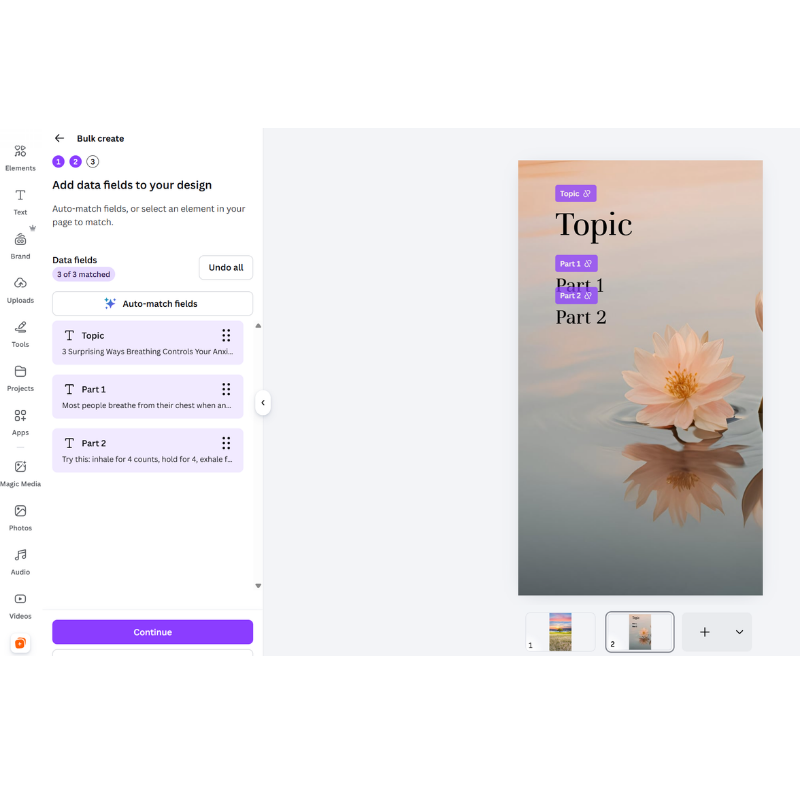
Click into each text box on your template (starting with Topic), click the three-dot menu, and choose Connect Data. Match each text box to its corresponding column: Topic to Topic, Part 1 to Part 1, Part 2 to Part 2. Once all three are connected, click Continue.
Step 5: Generate and Review
Click Generate, and Canva will build a separate, fully designed reel for every single row in your table, automatically saved into a project folder. If you started with 20 rows, you now have 20 finished designs sitting in your projects, ready to review.
Go through the batch and spot-check each one. Since these came from AI, this is your moment to catch anything that sounds off, oversimplified, or not quite in your voice, and tweak the wording directly on any individual design without touching the others.
Recycle and Refresh Instead of Reinventing
Not every post needs a brand new AI batch. Some of your best-performing content deserves a second life.
Revisit your top-performing posts from last quarter and refresh them with a new hook or updated design.
Repost seasonal content annually. Your "managing holiday stress" post doesn't need to be rewritten every November, just refreshed.
Generate a new batch of 15-20 whenever your current stockpile runs low, rather than trying to plan an entire year at once.
Schedule It and Walk Away
Once your batch is built and reviewed, schedule it all at once using Canva's built-in Content Planner (which connects directly to Instagram and Facebook) or your scheduler of choice. This is the step that turns "content I made" into "content that's actually going out," without you having to remember to post it manually every day.
*Note: this is only for the Pro version. To access, on the sidebar, under “More”, select Content Planner
A Simple Batching Audit
Before your next content session, check:
Is your Brand Kit set up with your actual colors, fonts, and logo?
Do you have a content pillar list so you're never starting from a blank idea?
Have you generated a batch of content with AI, using a structured prompt (Topic, Part 1, Part 2)?
Did you review every AI-generated entry for accuracy and tone before it went anywhere near a schedule?
Do you have one reusable reel template with matching text placeholders?
Are you scheduling a batch at a time instead of posting reactively?
If most of these are a "not yet," start with just the Brand Kit and one small AI-generated batch of ten. Everything else builds on top of that foundation.
With love (and a gentle reminder that "Monday Mindset" deserves better than a blank template at midnight),
Canva
Want more marketing tips for your practice? Check out these posts next: